How to Import a Trello Board into Glidely
Move a Trello board to Glidely in a few minutes: export it from Trello as JSON, import the file into a Glidely board, and keep your lists, cards, labels, due dates and checklists.
In short
- Reading time: About 3 minutes
- You need: A Trello board and a free Glidely account
- Takes: About five minutes per board
The short answer
In Trello, open the board menu and choose Print, export and share › Export as JSON. In Glidely, open the board menu and choose Export, import and share › Import from JSON, then pick the file. The lists and cards appear on the board in the same order.
Step 1: export the board from Trello
- Open the board in Trello.
- Open the board menu (the ⋯ button at the top right).
- Choose Print, export and share, then Export as JSON.
- Save the file that opens or downloads. One file holds one board.
Step 2: import it into Glidely
- Sign up free or log in, and open the board you want the cards on (or create a new one).
- Open the board menu › Export, import and share.
- Under Import into this board, choose Import from JSON and pick the Trello file.
- The lists and their cards are added after the lists already on the board.
What comes across
- Lists, in their Trello order.
- Cards, in their order, with titles and descriptions.
- Due dates.
- Labels, with their names and colours.
- Checklists, with each item and whether it was done.
What stays in Trello
- Archived lists and cards are skipped.
- Comments, attachments, card members and Power-Up data are not imported.
- Re-attach important files to the cards, and invite your team to the Glidely workspace.
Plan limits
A Free board holds up to 50 cards and 5 lists, so a large Trello board may not fit. Pro raises that to 200 cards per board, and Max has unlimited cards. You can also split a big board into a few smaller ones. See pricing.
After the import
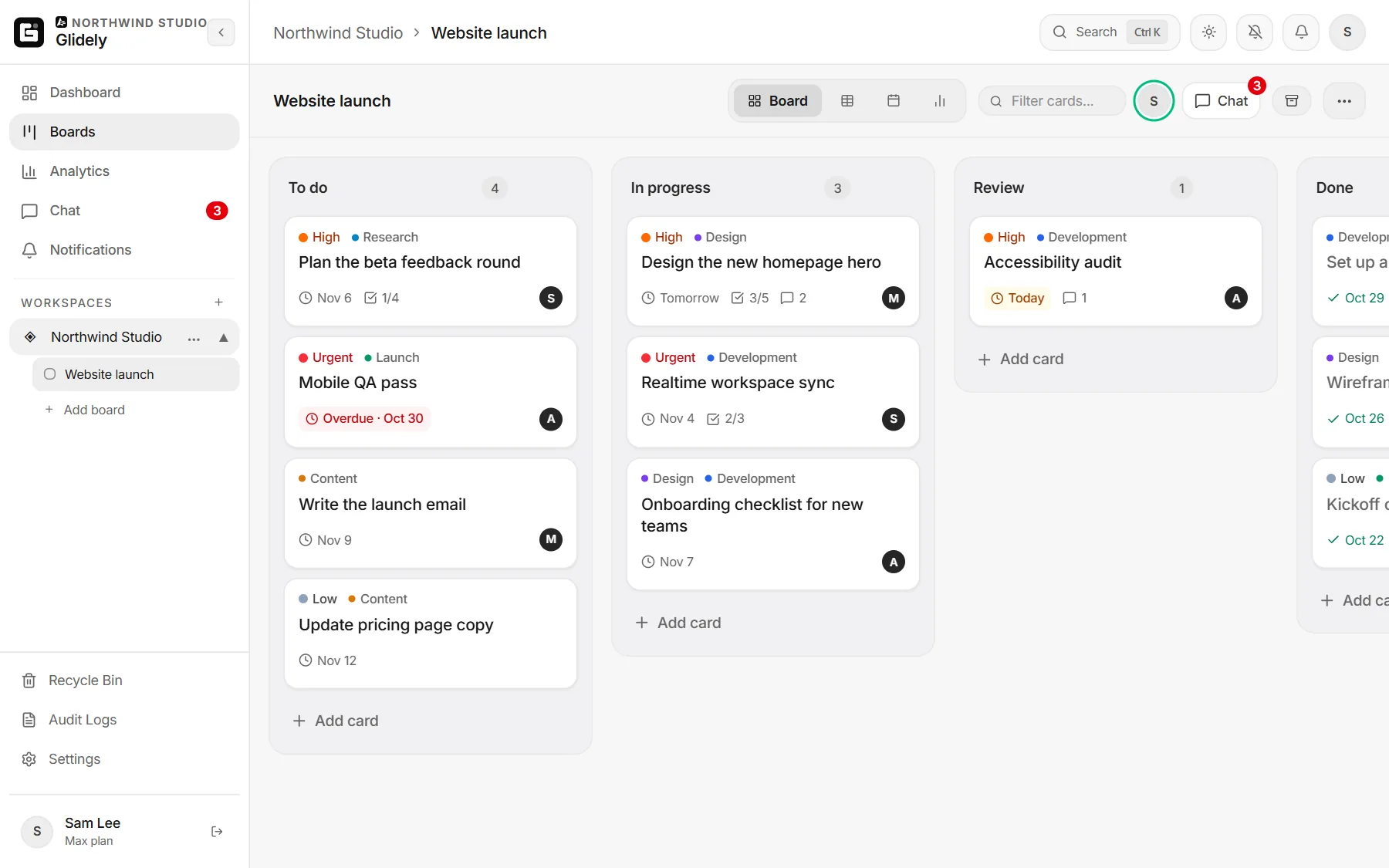
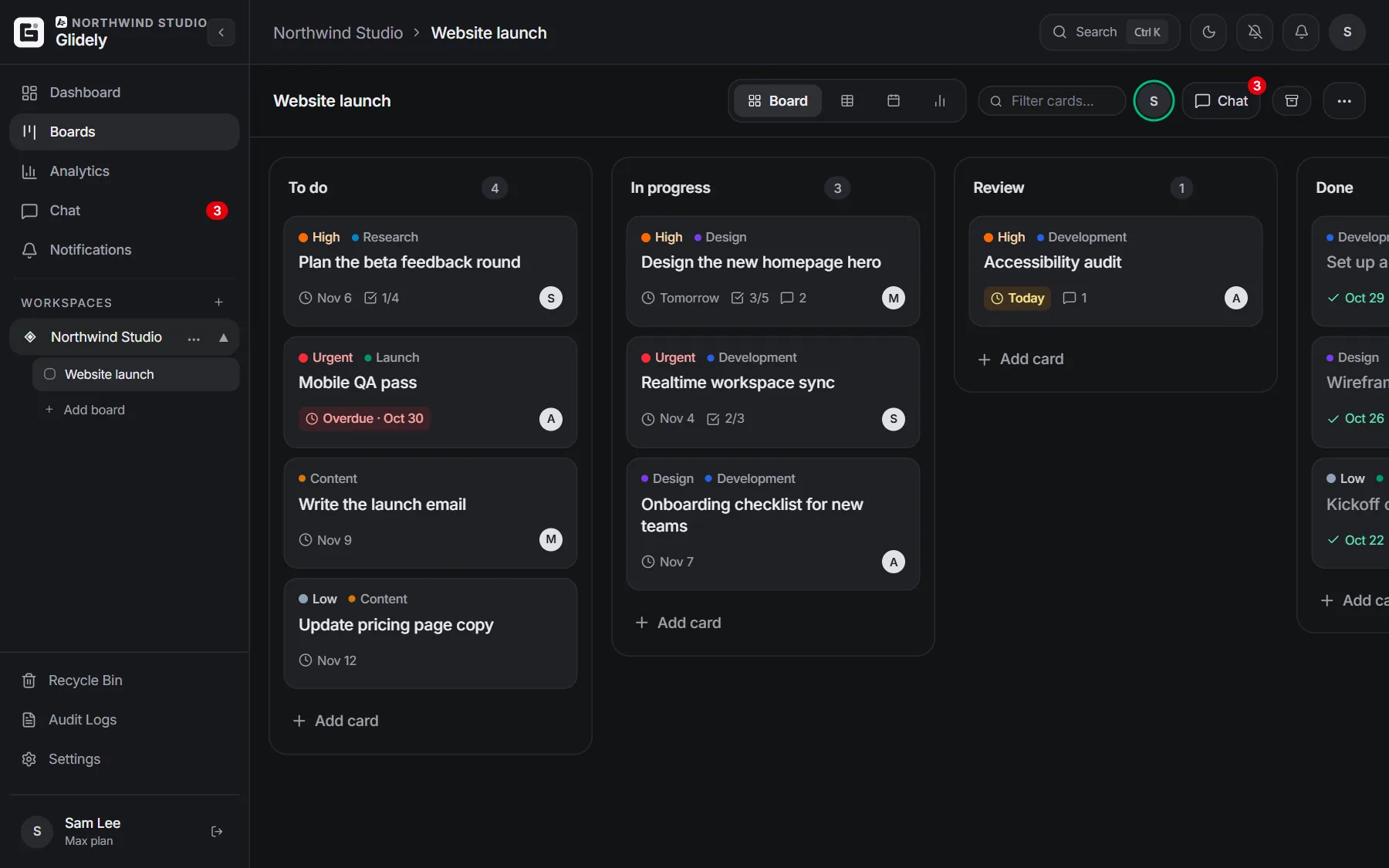
Open chat beside the board so the team can talk about the cards, switch to the calendar or timeline view, and connect the board to Slack or Microsoft Teams so updates reach your team. Read why teams switch from Trello.
Frequently asked questions
Is the Trello JSON export free?
Yes. Trello lets you export a board as JSON from the board menu. Exporting to CSV is the one that needs a paid Trello plan; the free Trello to Excel converter turns the JSON into a spreadsheet instead.
Can I import a CSV file instead?
Yes. Glidely also imports a CSV file with one row per card and columns for the card title and its list; priority, due date and labels are read too.
Will my Trello board change?
No. Exporting only reads the board; your Trello board stays as it is.
Boards, team chat and a calendar in one calm workspace. Free plan, no credit card.
Trello is a trademark of Atlassian. Glidely is not affiliated with Atlassian.
If you have any questions about this page, email us at support@glidely.site.